Summary
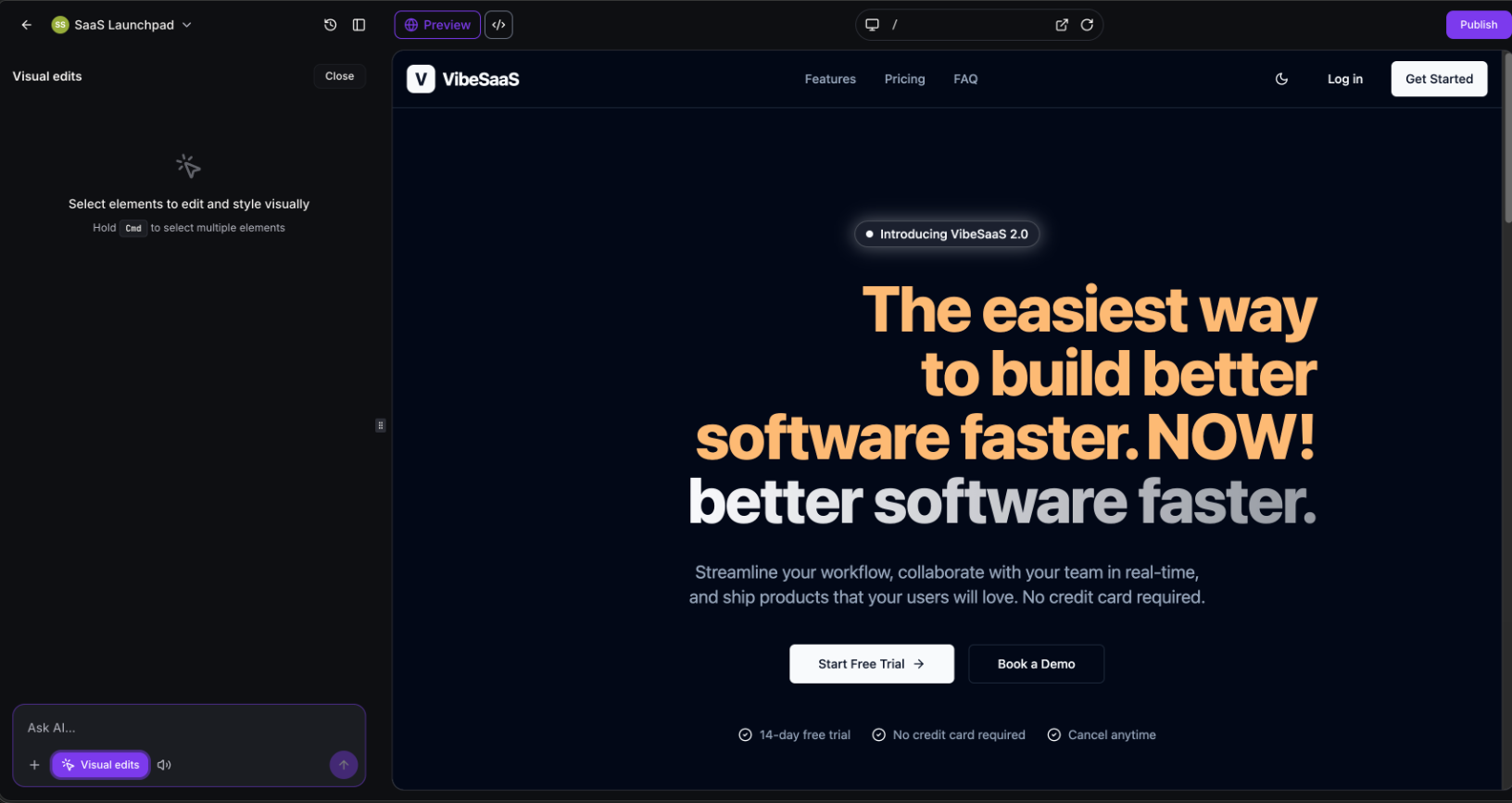
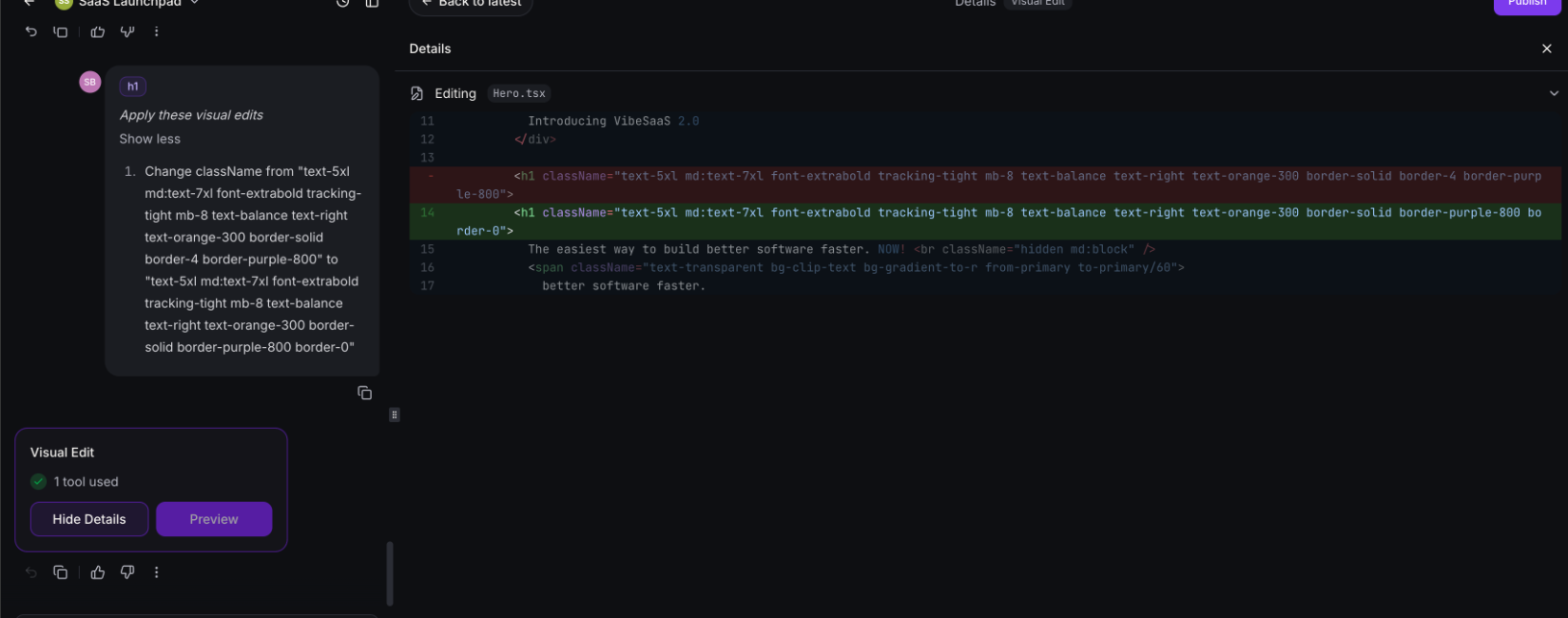
Visual Edits is a new in-canvas editing mode that lets you change how your site looks - colors, fonts, spacing, images, icons, and more directly by clicking on any element in the live preview. No need to describe what you want to AI; just point and adjust.
Visual edits are applied instantly without any LLM calls, so changes are near-instant and don't consume any of your token usage.
What's New
Click to select
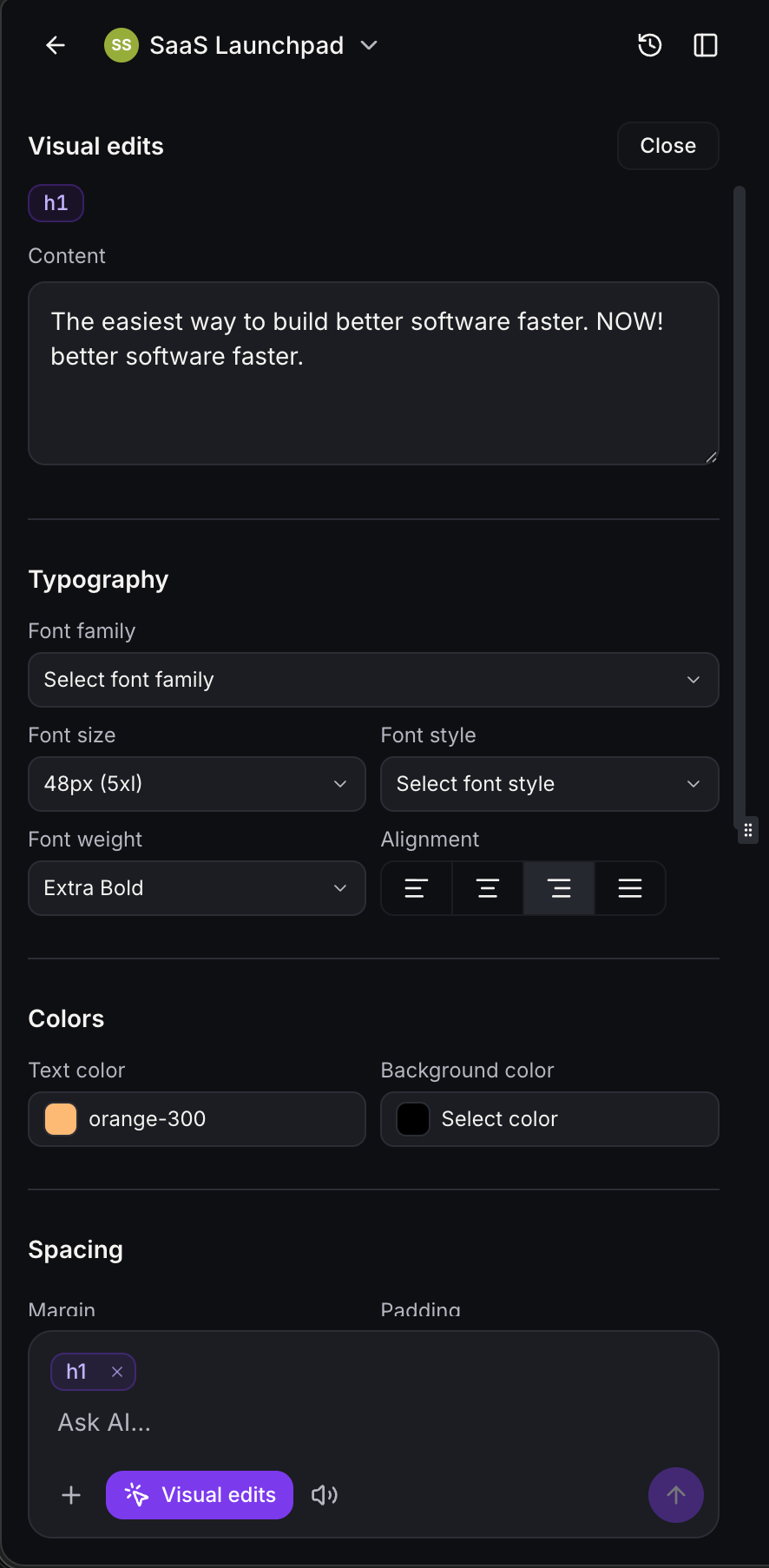
Click any element in the preview to open the Visual Edits panel. Controls adapt to what you selected — text, button, image, icon, or layout element.
Edit text inline
Double-click any text element to edit it directly in the preview. Press Escape or click outside when done.
Icon picker
Click any Lucide icon to open a searchable library of 1,600+ icons. Pick one and it swaps instantly, no reload needed.
Live color palette
Your project's theme colors appear alongside the full Tailwind palette. Click a swatch to apply.
Spacing controls
Margin and padding side by side, with a toggle to link or unlink all four sides.
Image layout
Select an image to get a Layout dropdown: Fill, Contain, Cover, or Scale down.
Icon sizing
Select a Lucide icon to resize width and height, snaps to Tailwind classes or accepts custom values.
Multi-select with prompt
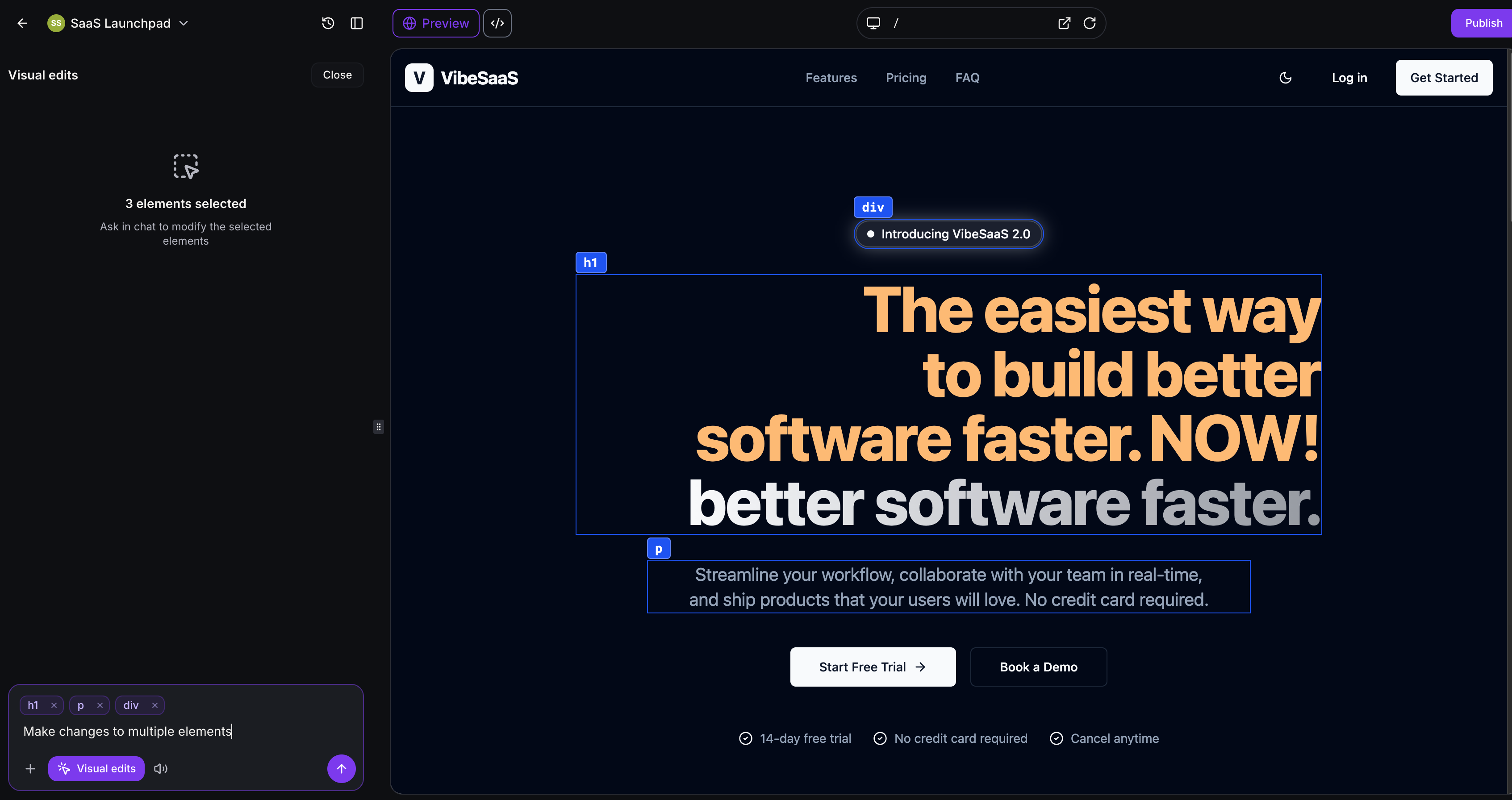
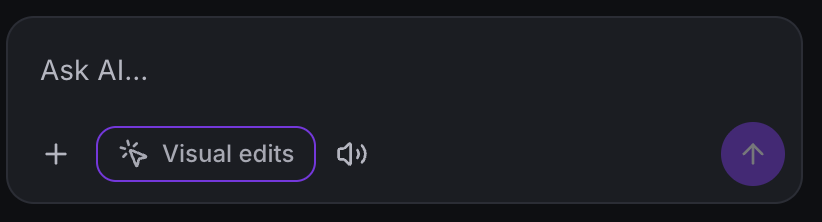
Select multiple elements at once and describe what you want changed across all of them in a single prompt. Great for applying consistent styling or making coordinated updates across several components.
Zero LLM calls for direct edits
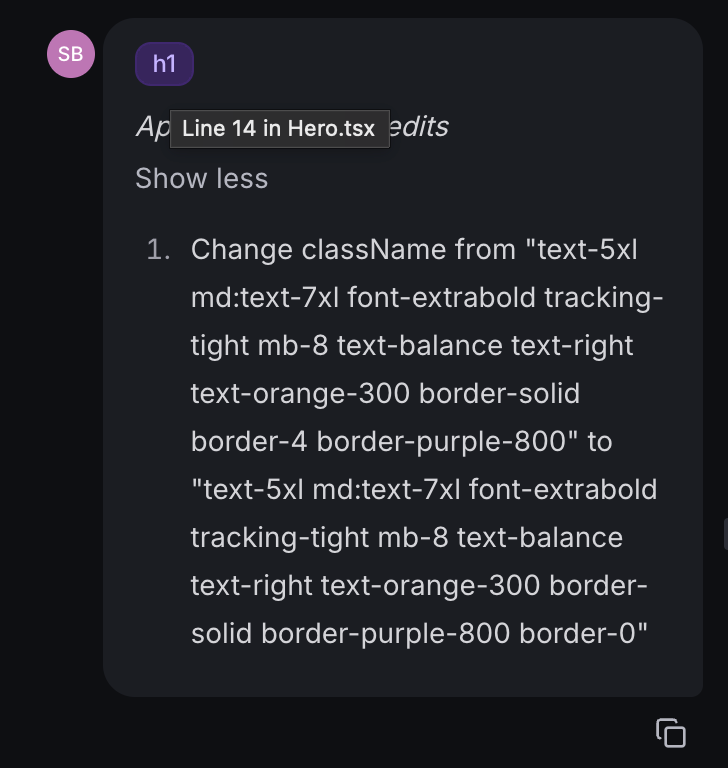
Color swaps, spacing tweaks, icon changes, inline text edits — none of these hit the AI. Changes apply instantly and don't count against your token usage. LLM is only invoked when you explicitly send a prompt.
Save or discard
Changes are previewed live. Hit Save to apply to your code, or Discard to throw them away.
What Can Be Edited
Any element: colors, spacing, border, shadow, border radius, opacity, typography
Text: edit content inline
Buttons and inputs: type, aria label
Links: URL, target, rel
Images: source, alt text, object-fit
Lucide icons: swap from full library, resize
Textareas: placeholder, name, rows
More coming soon!
Was this article helpful?
That’s Great!
Thank you for your feedback
Sorry! We couldn't be helpful
Thank you for your feedback
Feedback sent
We appreciate your effort and will try to fix the article